Aptivo

Learning that feels like play

A mobile learning app for early learners. Kids explore maths, art, logic, music and science through short lessons, a friendly flower guide called Petal, and progress they can actually see.

Case study by @heyhephzy • Product design, branding & illustration

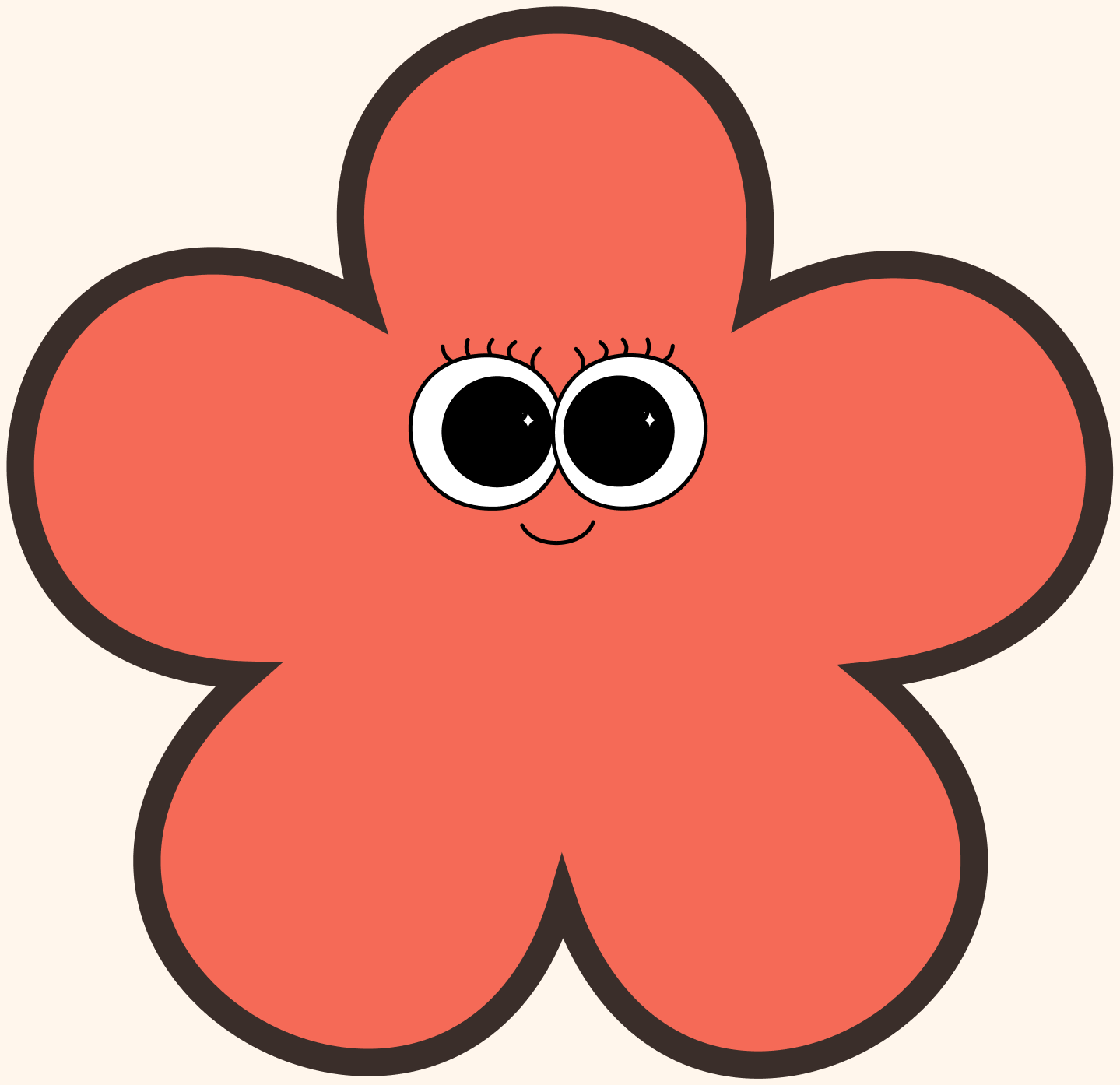
Petal, a big coral flower with googly eyes and a small smile

Overview

My role
Product designer & illustrator
Platform
Mobile app
Status
Concept
Deliverables
Brand identity, mascot, custom illustrations, style guide, user flow, high-fidelity UI

Aptivo is a learning app for young children who are still building the habit of learning on their own. Many of them can't read fluently yet, so every screen has to make sense through colour, shape and character before it makes sense through words.

I designed the full experience: the name and wordmark, Petal the mascot, a set of hand-drawn subject illustrations, and nine screens that take a child from their first tap to a trophy case of earned badges.


The problem

  1. 1Most learning apps for kids feel like school on a screen, or like games with a lesson bolted on. Kids drop the first kind and play the second without learning much.
  2. 2Young children can't rely on reading. Dense text, small targets and adult navigation patterns shut them out.
  3. 3Progress is invisible. A child has no sense of how far they've come, so there's no pull to come back tomorrow.

My answer

Give learning a face. Every subject in Aptivo has its own colour and character, and Petal guides the child from the very first screen.

Lessons are short and broken into small steps. Streaks, progress bars and badges turn effort into something a child can see and be proud of. The settings parents need sit quietly behind the profile, away from the play space.

First minute in the app

Onboarding is four screens and two questions. I wanted a child to be learning in under a minute, with nothing an adult needs to fill in for them.

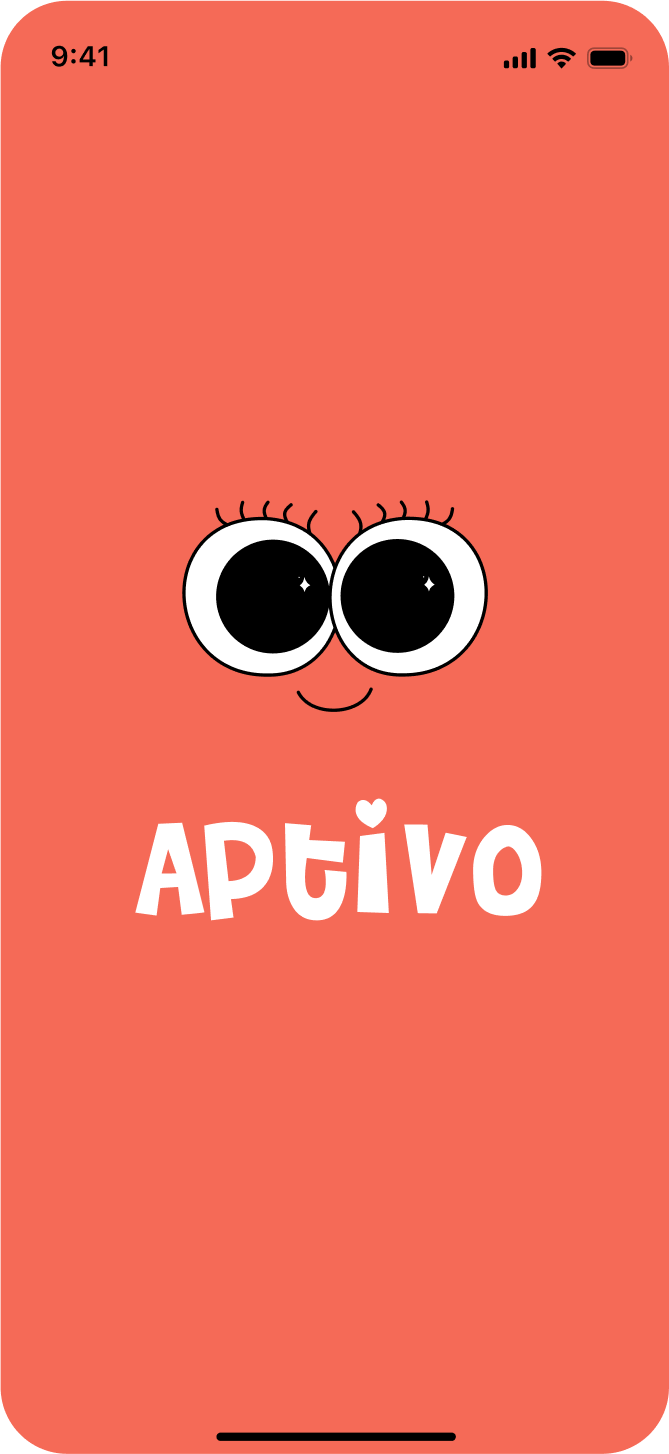
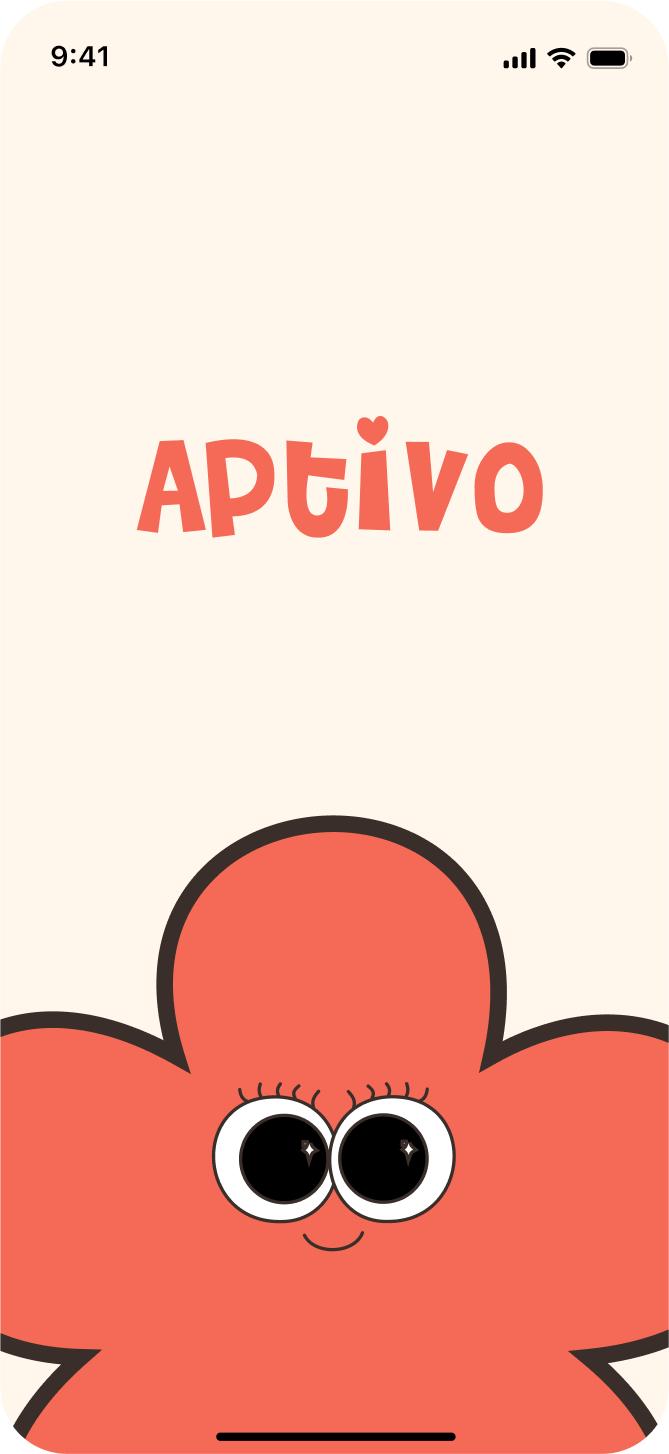
  1. Splash: Petal's eyes above the white Aptivo wordmark on coral

    1

    Hello

    The app opens on a face, so it feels like meeting someone.

  2. The coral Aptivo wordmark with Petal peeking up from the bottom

    2

    Meet Petal

    The guide peeks up before introducing herself.

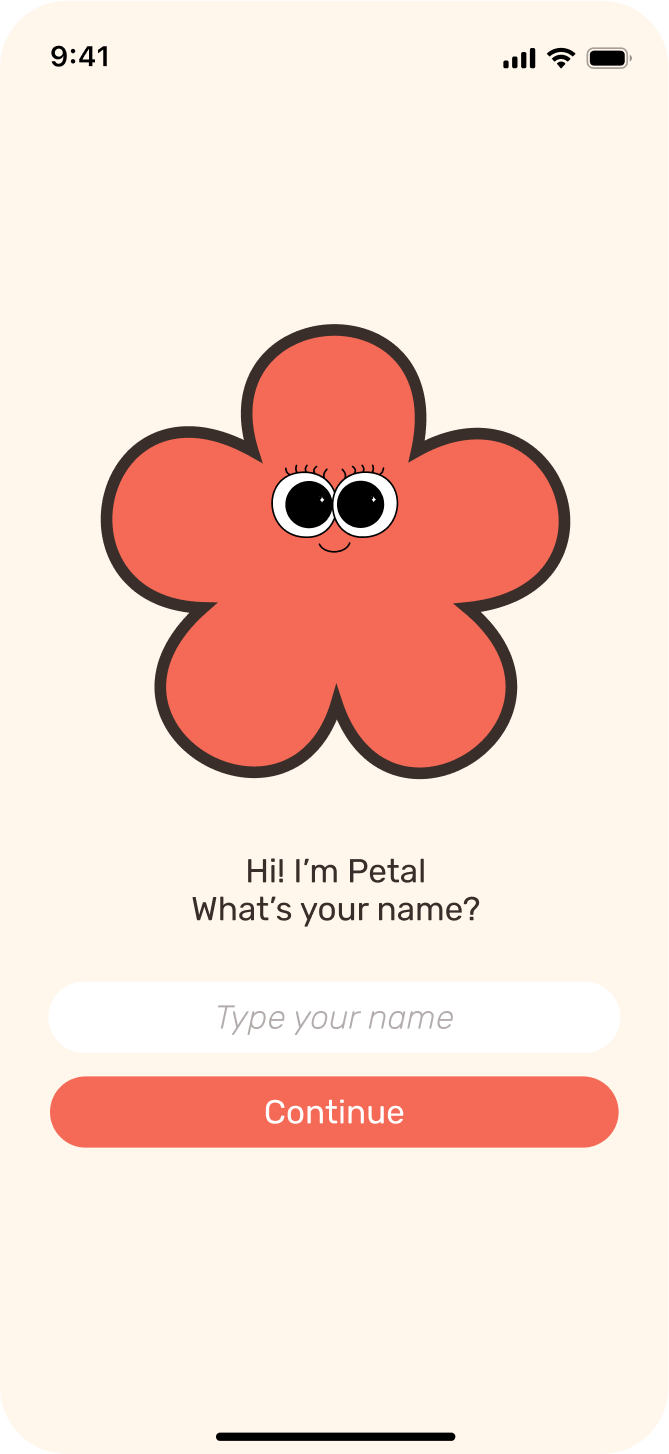
  3. Petal asks “Hi! I'm Petal. What's your name?” above a name field

    3

    “What's your name?”

    The first question is about the child, not an account.

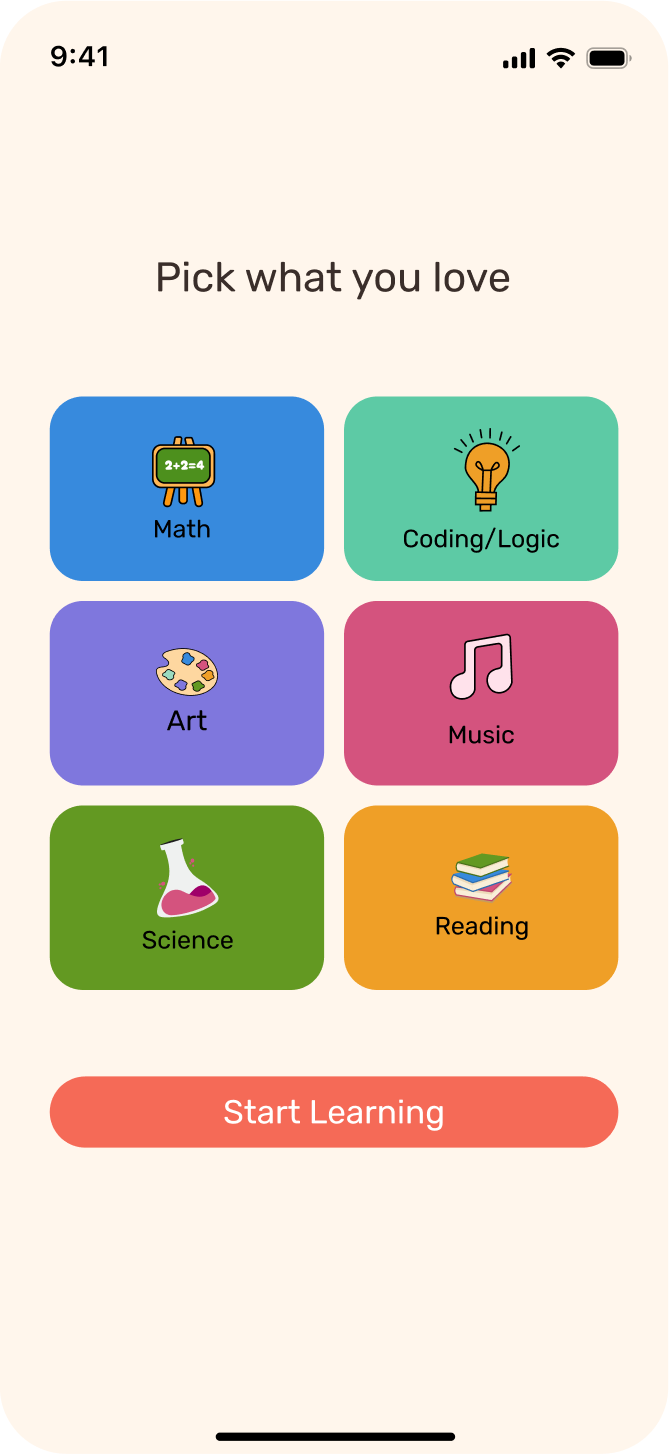
  4. Six colour tiles: Math, Coding/Logic, Art, Music, Science and Reading

    4

    Pick what you love

    Six big tiles, one tap each, then straight in.


Key design decisions

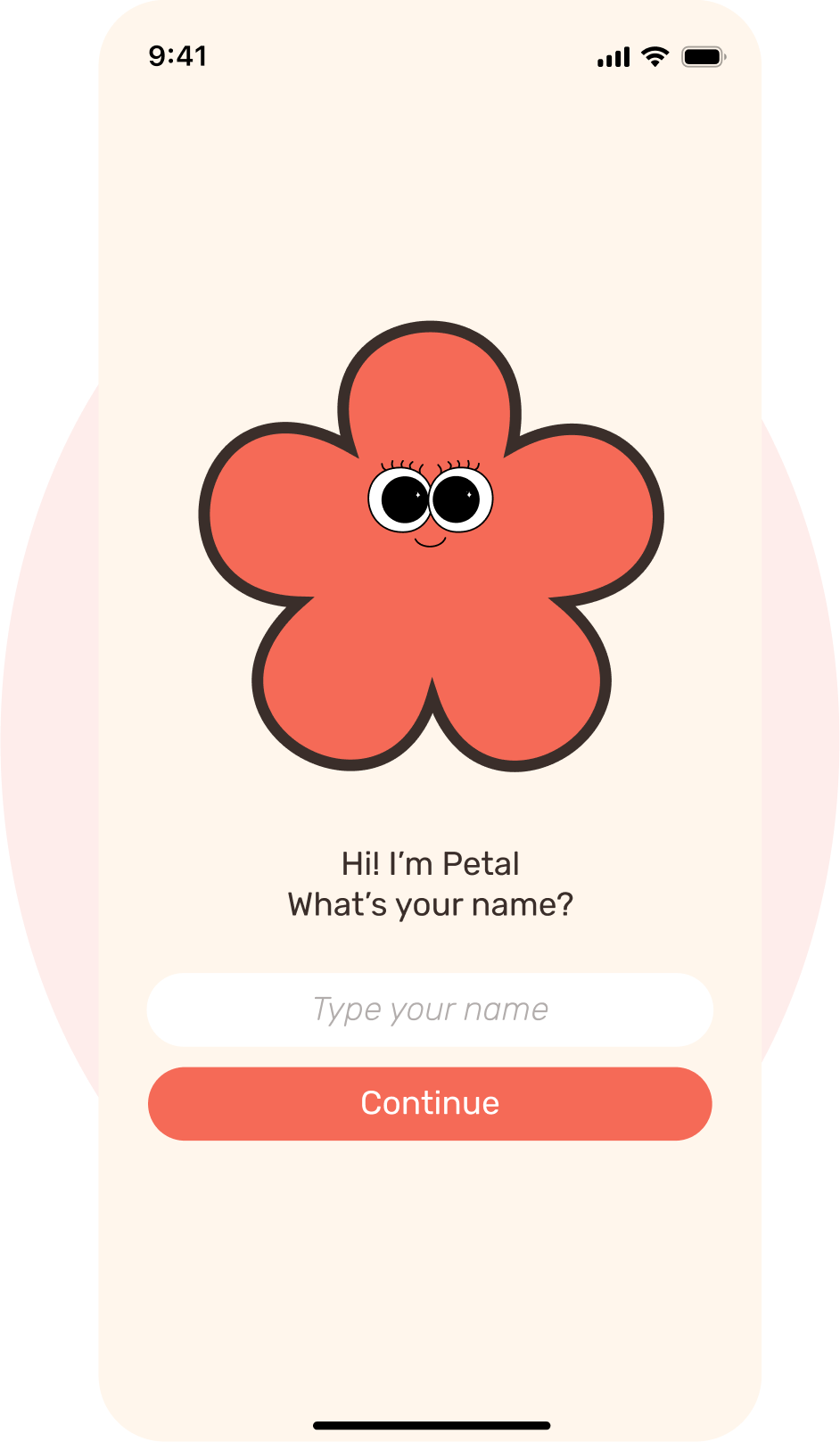
Petal asks the child's name on a cream screen, with a pale coral circle behind

A guide, not a form

Petal asks first

Instead of a sign-up form, the child meets a character who asks their name. That name comes back on the home screen ("Hello Alyssa") and on the profile, so the app feels like it knows them.

A mascot gives a pre-reader something to follow. Petal shows up again as the small flower in the corner of every main screen, a constant reminder of who's guiding them.
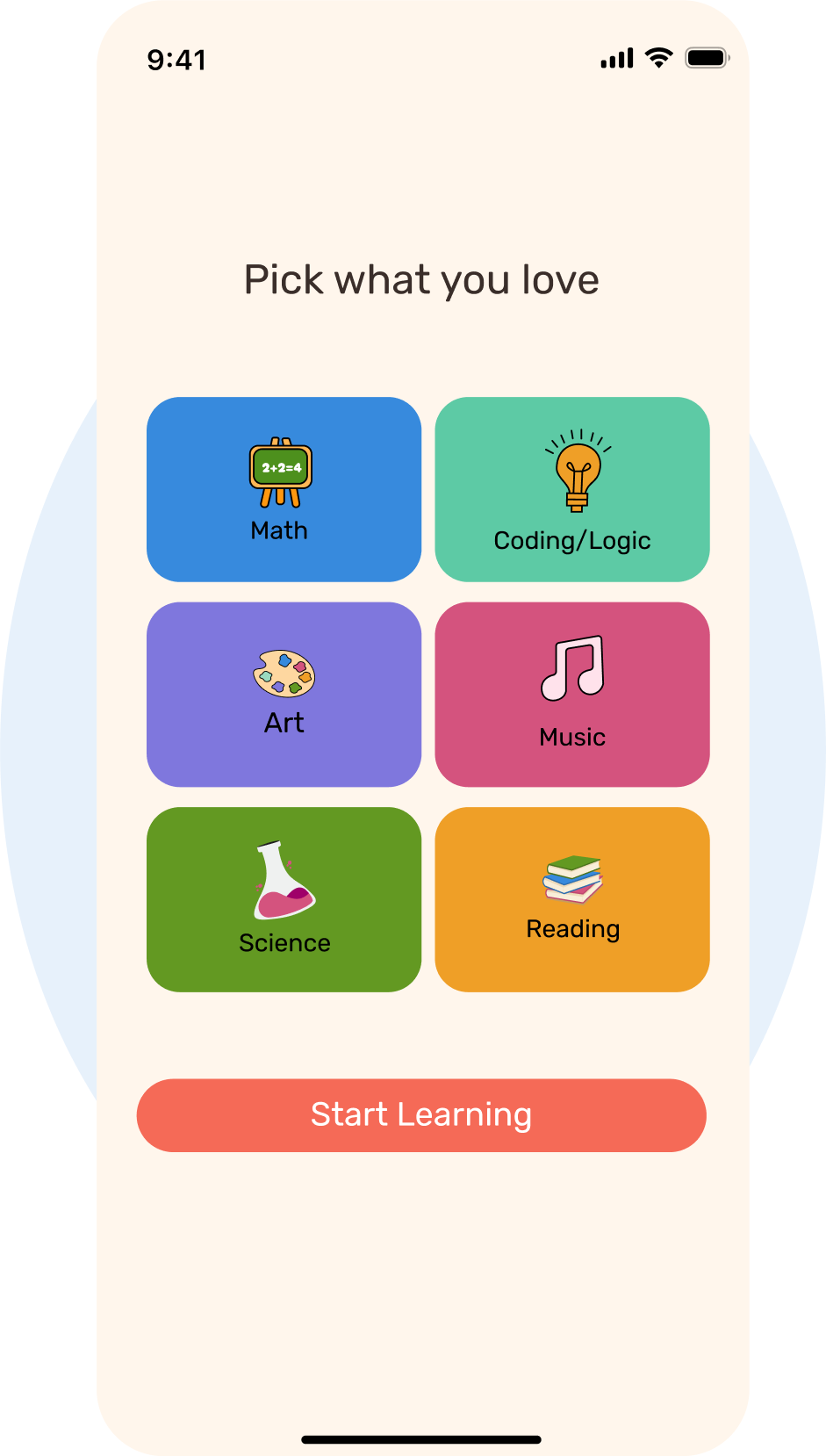
Pick what you love: six subject tiles in their colours, with a pale blue circle behind

Colour carries meaning

One colour per subject, everywhere

Maths is blue, Coding/Logic is mint, Art is lilac, Music is berry, Science is green and Reading is orange. The child picks subjects by colour and icon on day one, and the same colours return on lesson cards, course tiles and progress bars.

For a child who can't read "Science" yet, "the green one with the flask" is enough to find it again.

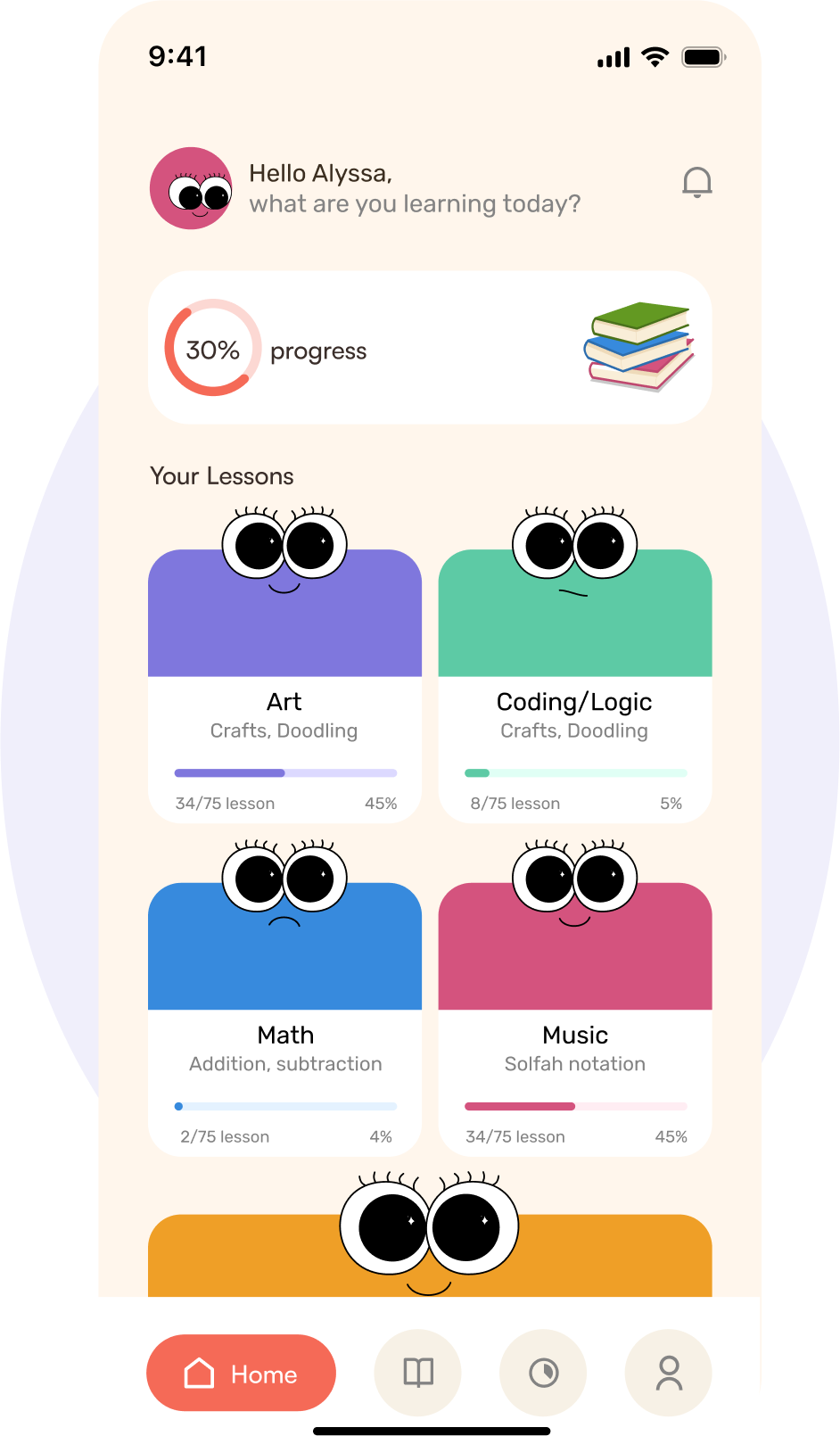
Home: Hello Alyssa, a 30% progress ring, and lesson cards with googly eyes, with a pale lilac circle behind

Every subject has a face

Lessons that look back at you

Each lesson card on Home is a little character with big googly eyes, sitting on top of its subject name and a progress bar. The overall progress ring at the top shows the whole picture at a glance.

Faces make the home screen feel like a group of friends to visit, not a list of tasks to clear.

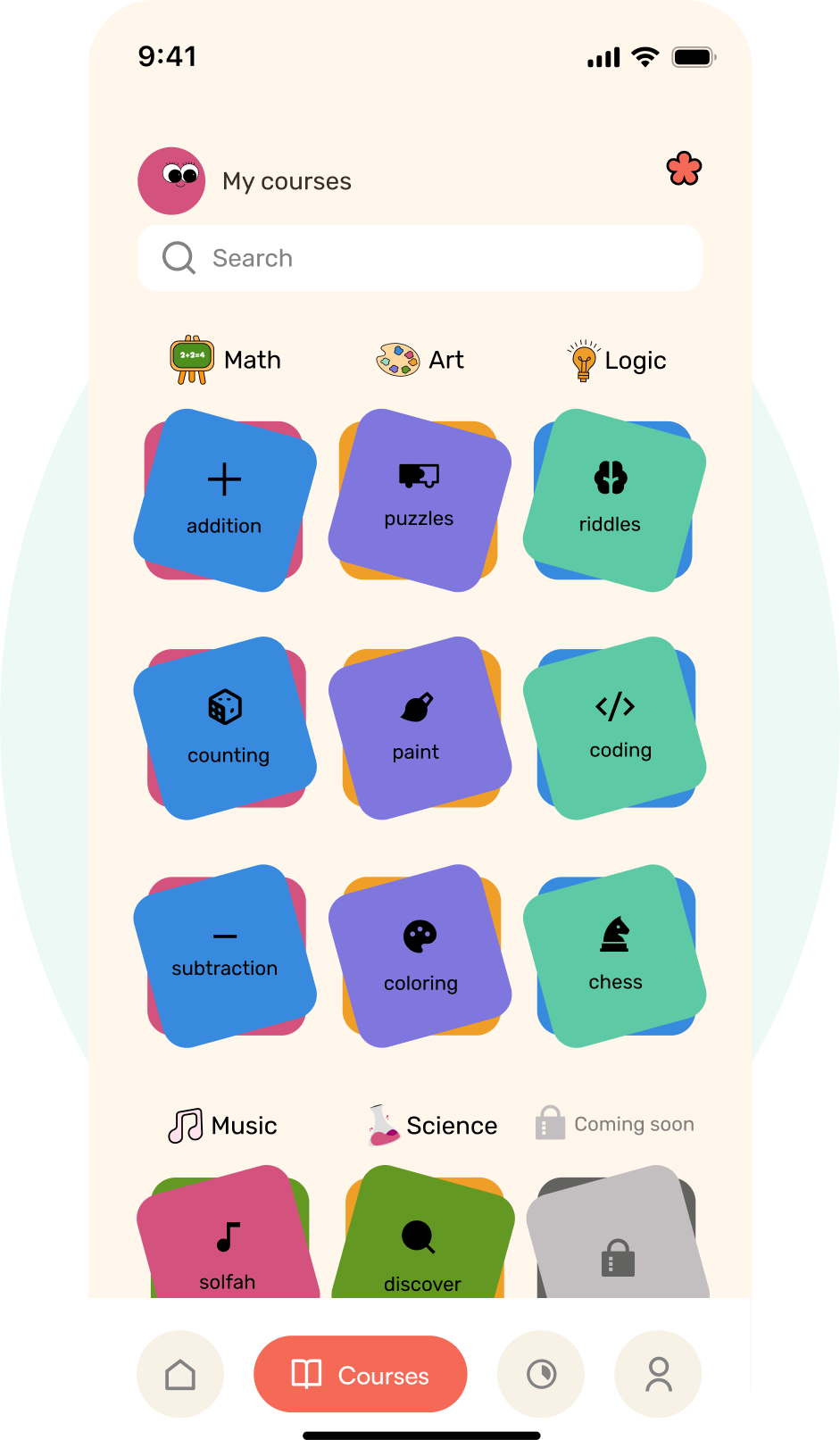
Courses: tilted, stacked tiles grouped by subject, with a locked Coming soon tile and a pale mint circle behind

Built for small hands

Tiles you want to tap

Courses are big, slightly tilted tiles stacked like toy blocks, each with one icon and one word: addition, puzzles, riddles, paint, chess. Subjects are grouped under their own heading, and a greyed "Coming soon" tile sets expectations for what's next.

The tilt and layered colour make the grid feel touchable and playful, while the large targets stay easy for small fingers.

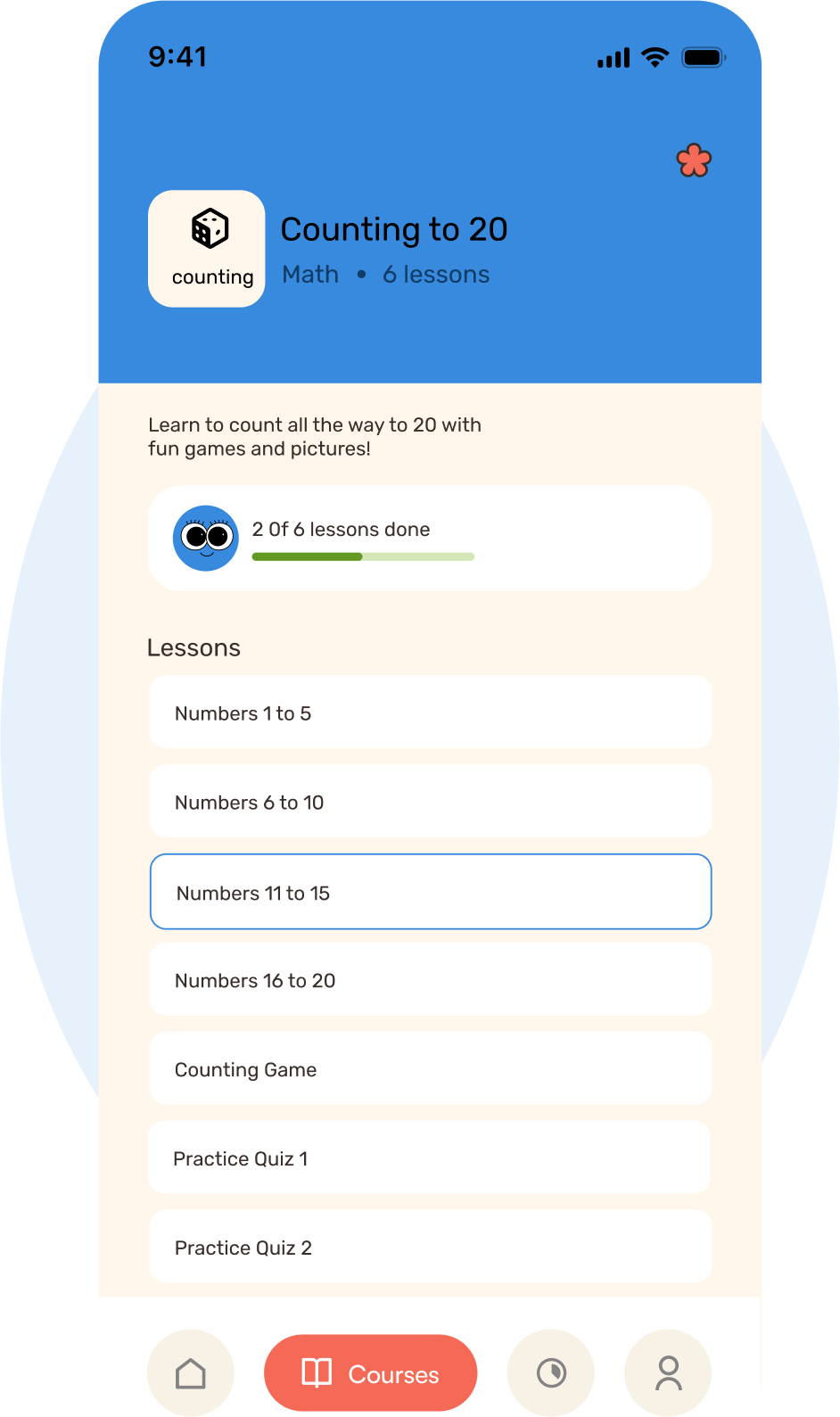
Counting to 20: a blue header, 2 of 6 lessons done, and the list of short lessons, with a pale blue circle behind

Small steps

One goal, six short lessons

"Counting to 20" is split into bite-size parts: Numbers 1 to 5, 6 to 10 and so on, then a counting game and two practice quizzes. The current lesson is outlined and a simple bar shows "2 of 6 lessons done".

Young attention spans are short. Small wins keep momentum, and mixing games with quizzes keeps practice from feeling like a test.

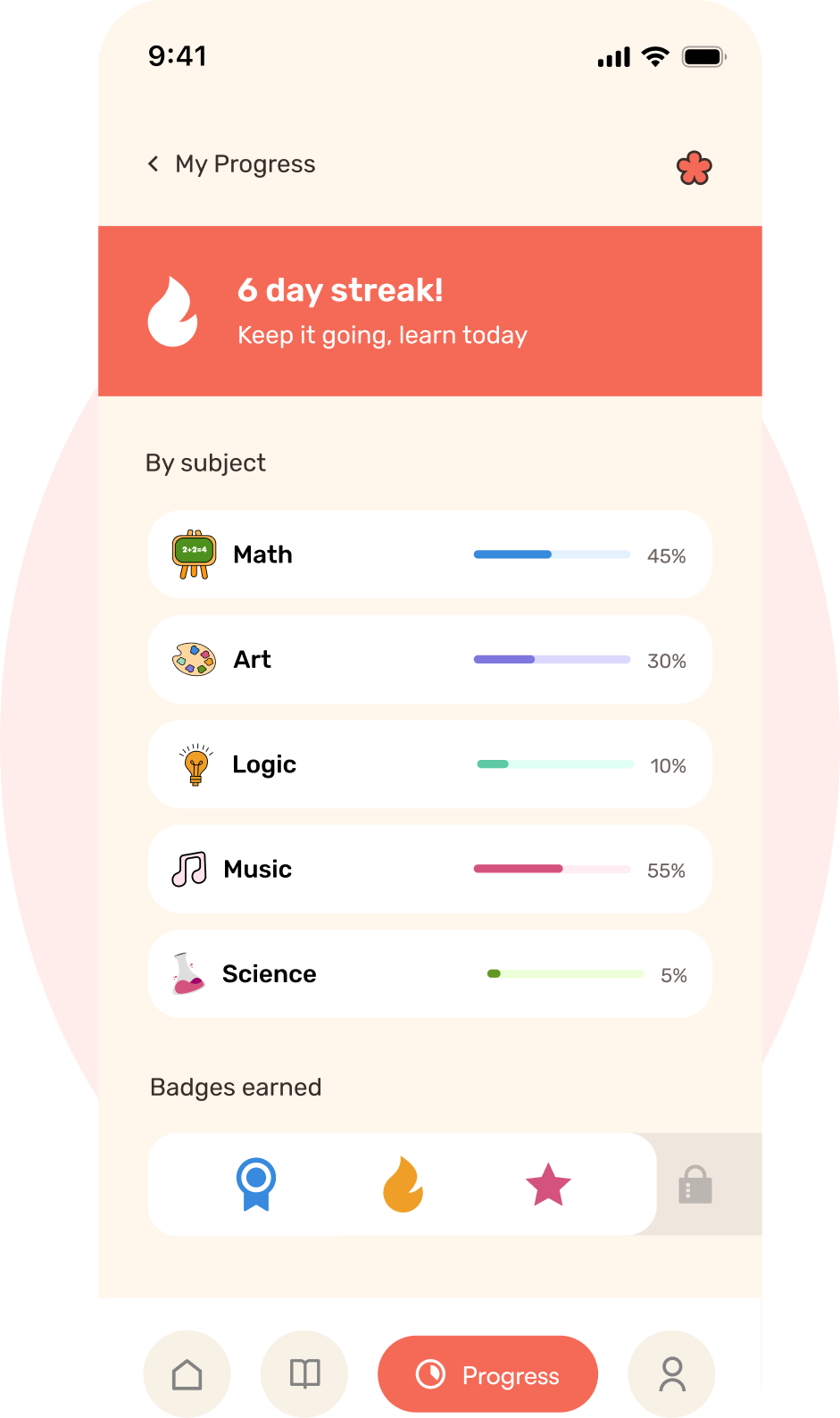
My Progress: a coral 6 day streak banner, progress per subject and badges earned, with a pale coral circle behind

Progress you can feel

Streaks and badges, gently

The progress screen leads with the streak ("6 day streak! Keep it going, learn today"), then shows each subject's progress in its own colour, then the badges earned. A locked badge slot hints that there's always one more thing to unlock.

I kept the language encouraging rather than competitive. There's no leaderboard here; the only person a child is racing is yesterday's self.

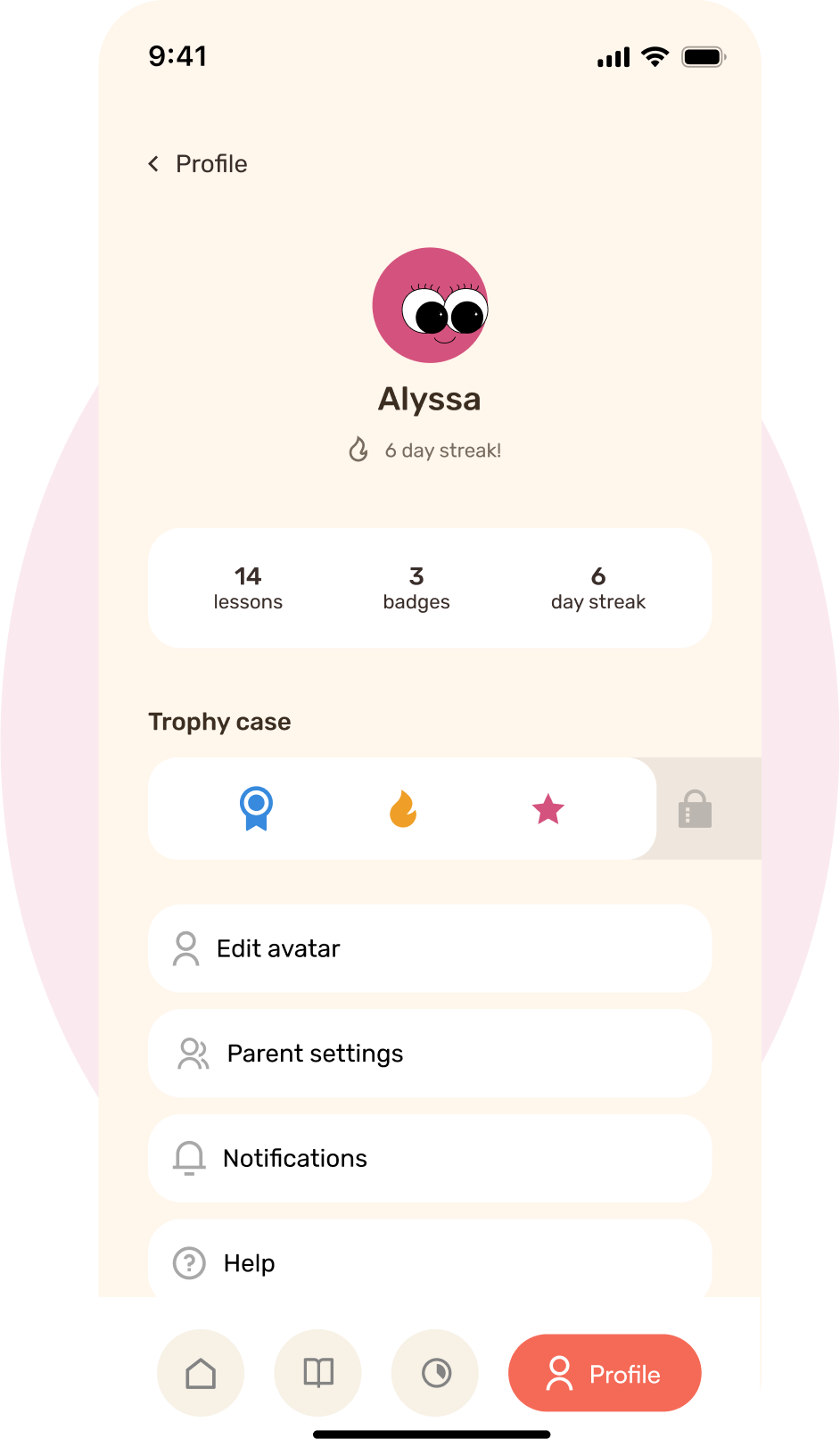
Profile: Alyssa's avatar, totals, a trophy case and parent settings, with a pale berry circle behind

Kids in front, parents behind

A profile that's a trophy case

The profile puts the child's avatar, totals (14 lessons, 3 badges, 6 day streak) and trophy case up front. Parent settings, notifications and help live in a plain list underneath.

Grown-up controls stay reachable for parents without cluttering the space a child sees every day.

Style guide

Colour palette

  • Petal coral#F56A57
  • Maths blue#378ADD
  • Reading orange#EF9F27
  • Science green#639922
  • Music berry#D4537E
  • Art lilac#7F77DD
  • Logic mint#5DCAA5
  • Cocoa ink#3A2E2A

Coral is the brand and action colour. The other six each belong to one subject. Cocoa replaces black for outlines and text, which keeps everything soft.

Typography

Aptivo

Cheri

Wordmark only. Bouncy and hand-lettered, with a heart over the i.

Counting to 20

Rubik

UI and body text. Rounded corners and open letterforms keep it friendly and easy to read.

Two typefaces, each with one job. All the personality goes into the wordmark and illustrations, so the interface text can stay calm and legible.

Custom illustrations

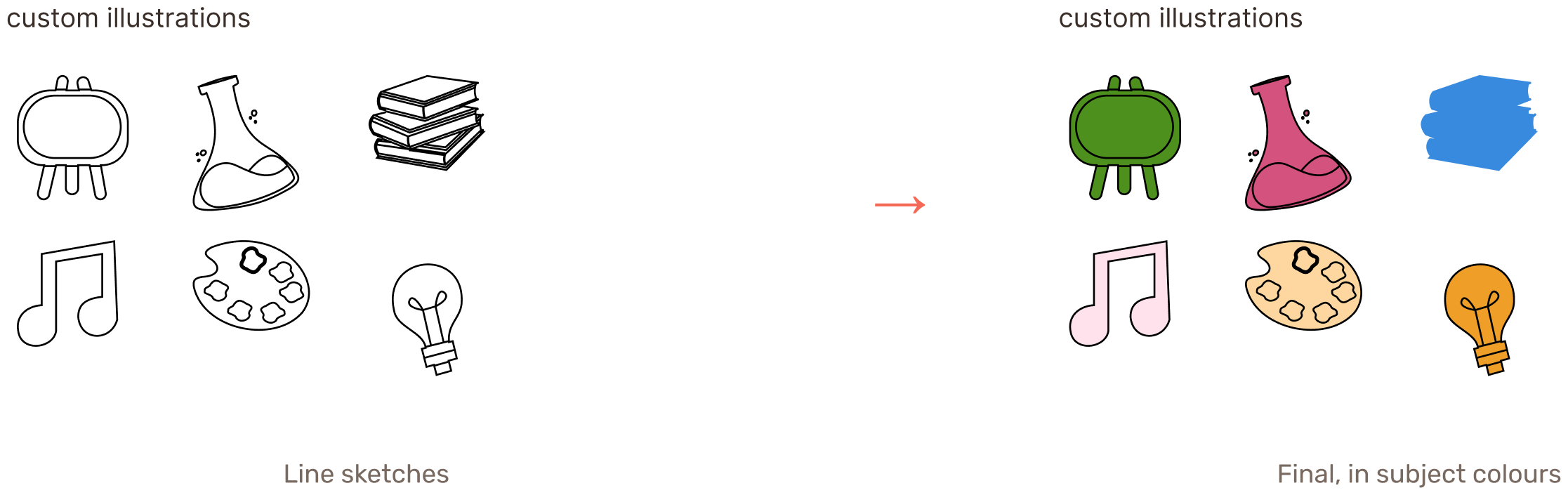
Six hand-drawn objects (an easel, a flask, a book stack, a music note, a paint palette and a lightbulb): line sketches on the left, then filled in subject colours on the right

I drew one object for each subject: a chalkboard easel for maths, a flask for science, a book stack for reading, a music note, a paint palette and a lightbulb for logic. They started as line drawings and were then filled with each subject's colour so they read as a set.


All screens

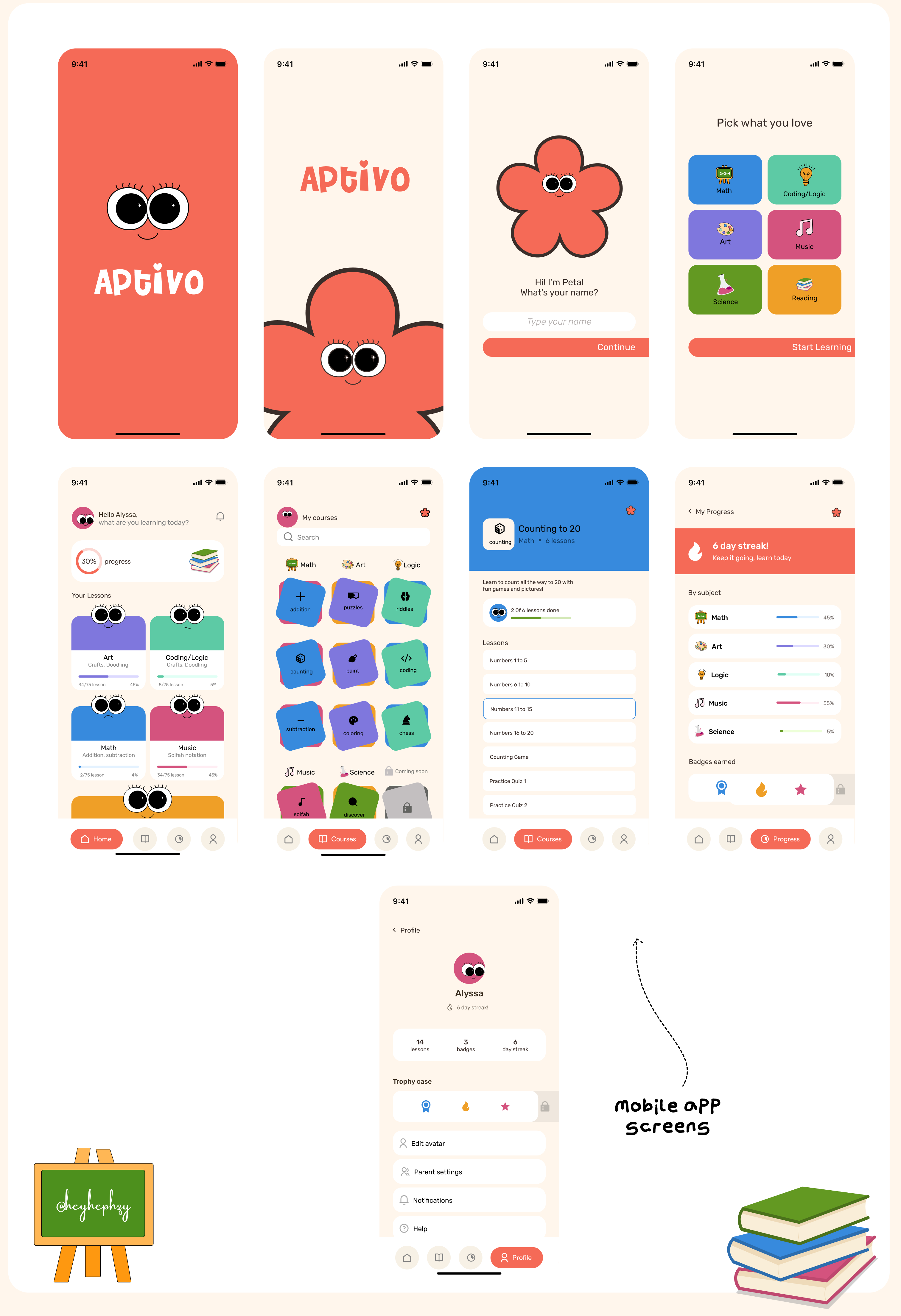
All nine screens on a white board: Splash, Welcome, Name, Subjects, Home, Courses, Lesson, Progress and Profile, with a hand-drawn easel signed @heyhephzy, a stack of books and a note reading “mobile app screens”

Reflections

Designing for children taught me to stop leaning on words. When your user can't read the label, colour, shape and character have to do the work, and that discipline made every screen simpler.

It also changed how I think about delight. A face on a lesson card or a flower in the corner isn't decoration here. It's what makes a young child want to open the app again tomorrow. Building the brand, mascot and illustrations alongside the UI meant those choices could support each other instead of being added at the end.

  • Test with real kids

    Watch children and parents use a prototype to see where they hesitate, and which screens they return to on their own.

  • Add voice

    Let Petal read instructions aloud, so children who can't read yet can move through lessons without help.

  • Check contrast

    Some white labels on the mint and orange tiles are light. I'd test them and darken text or tiles where needed.